Technical SEO
· 8 min read
HTTP 401 Error: Meaning, Causes & Fixes
See what an HTTP 401 error means, how it differs from 403 and how users or developers can fix authentication problems. Check the steps now.
Read article
Learn how to use Google Search Console to verify your site, submit a sitemap, read performance data, fix indexing issues, and catch traffic drops early.
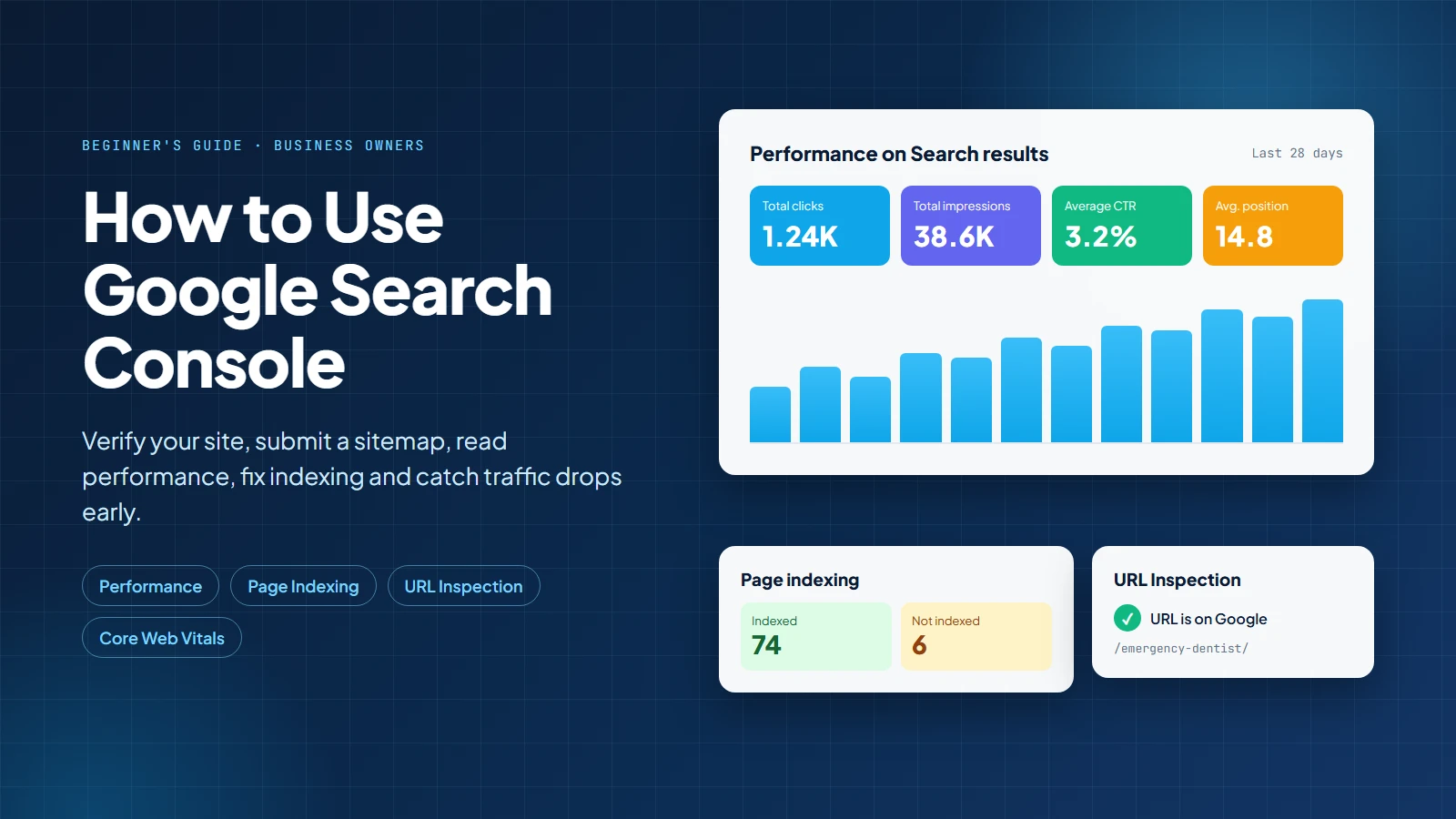
Google Search Console is a free Google tool that shows how your website performs in Google Search, which pages are indexed, what search terms bring impressions and clicks, and what technical issues may block visibility.
For a business owner, it answers the big question: can Google actually see my website? Without it, SEO can feel like trying to fix a car by listening to it from another room.
Google says Search Console helps website owners measure traffic, fix issues, and improve search appearance. Google also says business owners should understand its basics even if an SEO team handles the daily work.
In Canada, this matters because Google still owns most search demand. StatCounter reported Google at about 85.66% of the Canadian search market in August 2026. If Google cannot understand your site, most buyers will not find it by luck.
Search Console helps with the pain points owners search for every week:
These are revenue questions, not just SEO questions. If your main service page is not indexed, a buyer cannot find it. If a page has impressions but no clicks, the title or offer may be weak. If traffic drops after a redesign, Search Console is where you start looking.
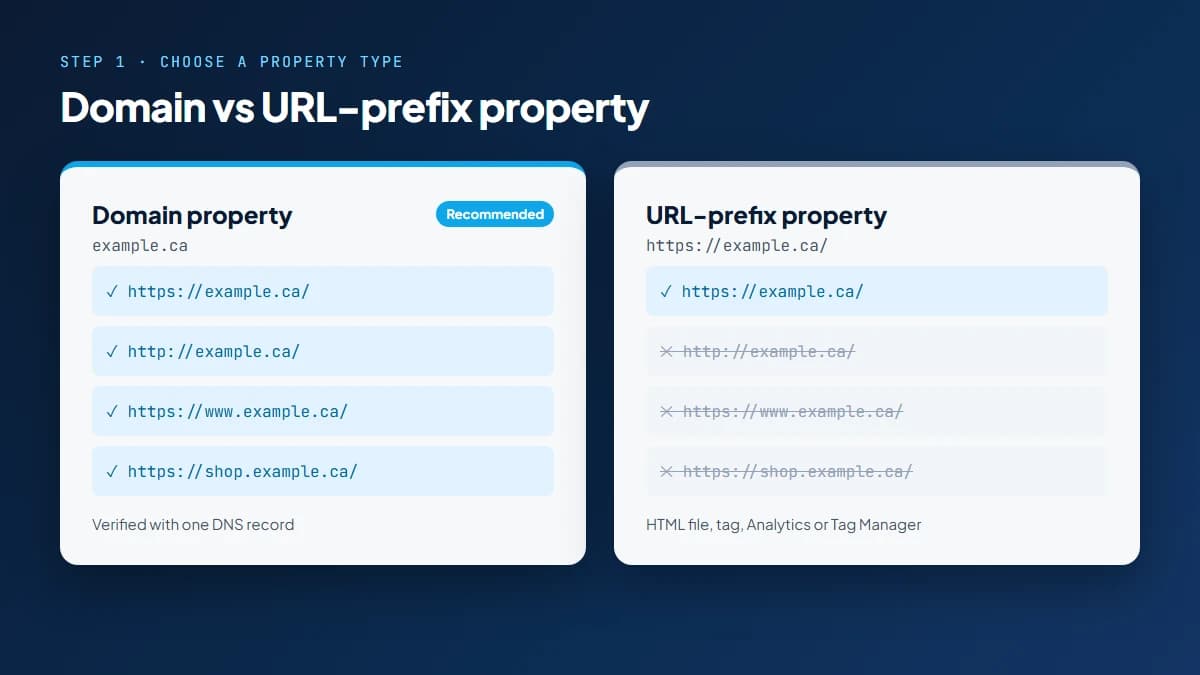
Add your site as a property inside Search Console. Google usually offers Domain property and URL-prefix property options.
Most business sites should use a Domain property where possible because it gives cleaner coverage. Verification can be done through DNS, HTML file upload, HTML tag, Google Analytics, Google Tag Manager, or your website platform. DNS sounds scary, but it is usually one small record added by your host or developer.
After verification, give access only to people who need it. Google lets owners manage users and permissions, so your SEO team can work without everyone becoming the digital landlord of your website.
A sitemap lists important URLs on your website. Google says a sitemap can help Google learn about your pages, but it does not guarantee indexing or rankings.
Must-know tip: if your site has 80 important pages but Search Console sees 9, something may be wrong with your sitemap, internal links, robots.txt file, or website setup.
The Performance report shows clicks, impressions, click-through rate, and average position. This is the report most owners should check first because it shows how real searchers meet your business.
| Metric | Meaning | Business question |
|---|---|---|
| Clicks | People clicked your result. | Are we getting visits? |
| Impressions | Your result appeared. | Is Google showing us? |
| CTR | Clicks divided by impressions. | Is our listing persuasive? |
| Average position | Average ranking. | Are we close to page one? |
Do not stare only at total clicks. Open the Queries tab to see what people typed and the Pages tab to see which URLs earned visibility. If a Mississauga dentist gets impressions for "emergency dentist Mississauga" but few clicks, the page title may not match urgent intent.
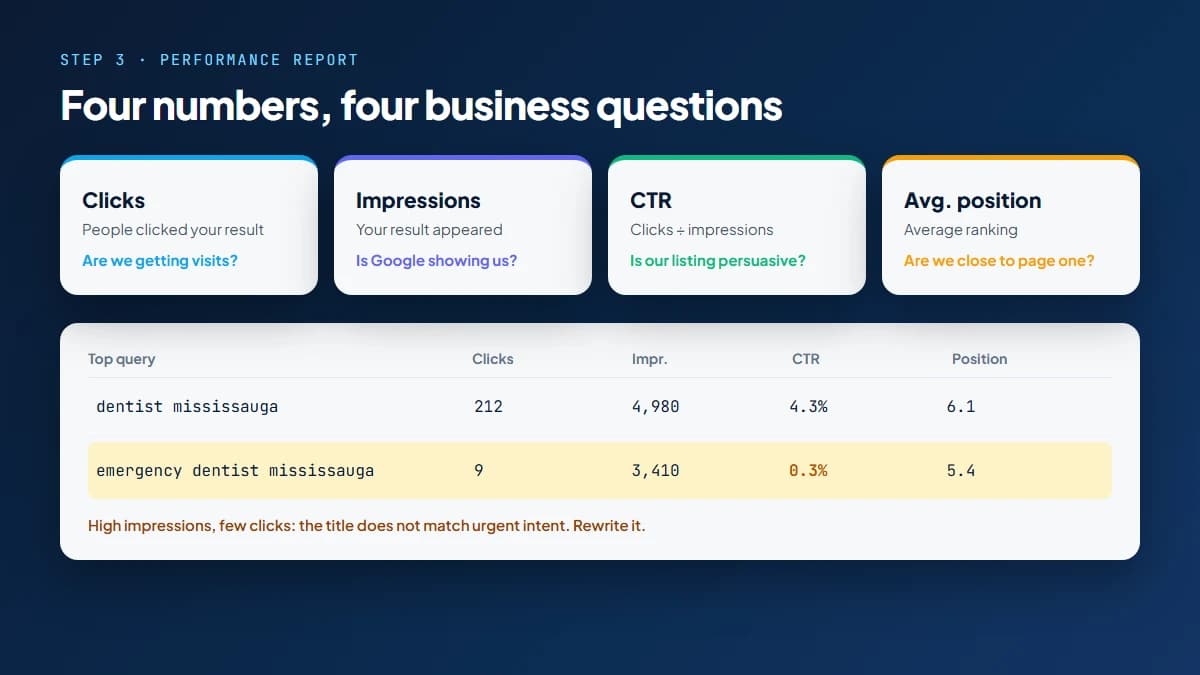
This is where on-page SEO and content strategy matter. Local SEO Mississauga builds pages around real search intent, clear headings, internal links, and conversion-focused copy, not keywords sprinkled like parsley.
The Page Indexing report shows which pages are indexed and which are not. Google says if Search Console shows a URL as indexed, the page is eligible to appear in Google Search results.
Common warnings include:
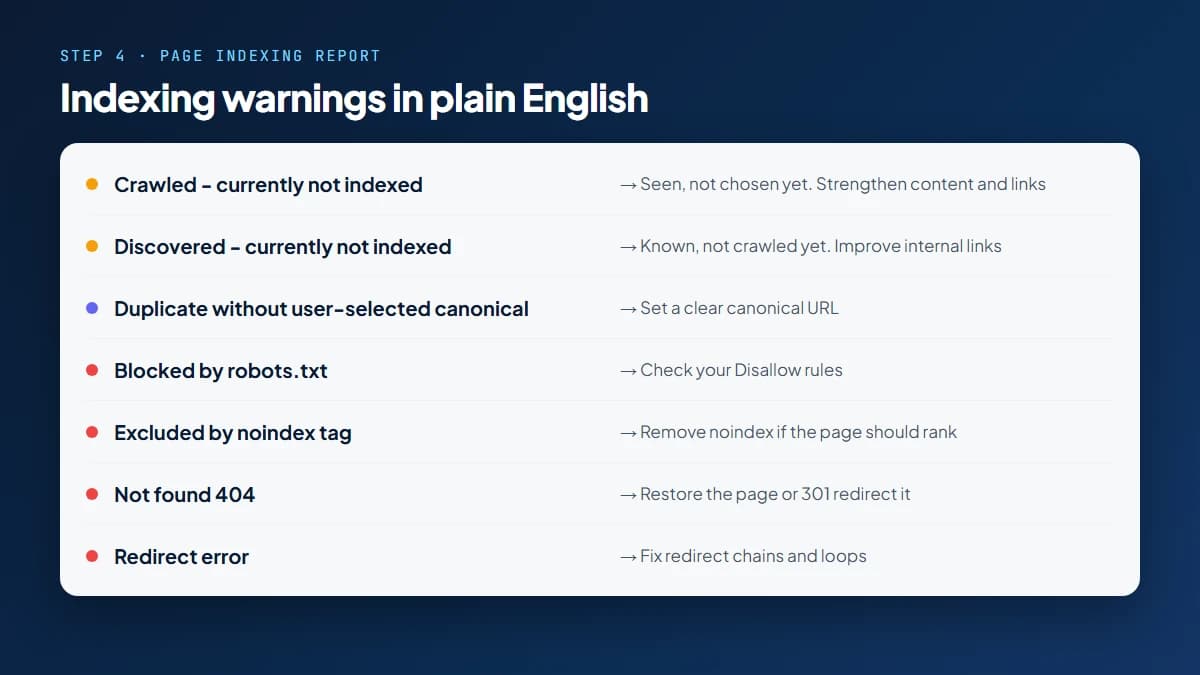
Pain point translation: "Crawled - currently not indexed" means Google saw the page but did not choose to index it yet. This can happen because the page is thin, duplicate, poorly linked, or not useful enough. If it is a main service page, fix it before chasing advanced SEO tricks. A page that is not indexed is like a billboard inside your garage.
The URL Inspection tool shows what Google knows about one page. Google says it provides indexing, crawling, structured data, enhancement, and live test information.
Use it when you publish a new page, update an important page, see an indexing warning, or want to check whether Google sees the correct canonical URL.
You can request indexing after changes, but it is not a magic "rank me now" button. It asks Google to recrawl. Google can still decide the page is not ready for the index, which is rude but allowed.
Core Web Vitals group pages by real user experience. In normal language, they help you spot slow loading, layout jumping, and poor interactivity.
The 2025 Web Almanac found that 48% of mobile sites passed all three Core Web Vitals in 2025, up from 44% in 2024. Desktop sites reached 56%. That means performance problems are still common, especially on phones.
For local businesses, mobile speed matters because "near me" searches often happen on phones. Local SEO Mississauga's Technical SEO service checks crawl paths, index status, speed, and mobile behaviour so owners can fix problems that stop Google and customers from reaching key pages.
Google added Search Console Insights directly inside Search Console after testing it as a separate experience. Google describes it as a simpler way to understand clicks, impressions, top content, queries, countries, and traffic sources.
Beginners should use Insights as the "what is happening?" view, then open the full Performance report when they need details. It is useful for spotting pages gaining traffic, pages losing momentum, and topics that deserve stronger articles or service pages.
You do not need to live inside Search Console. It has no kitchen. Use this weekly routine instead:
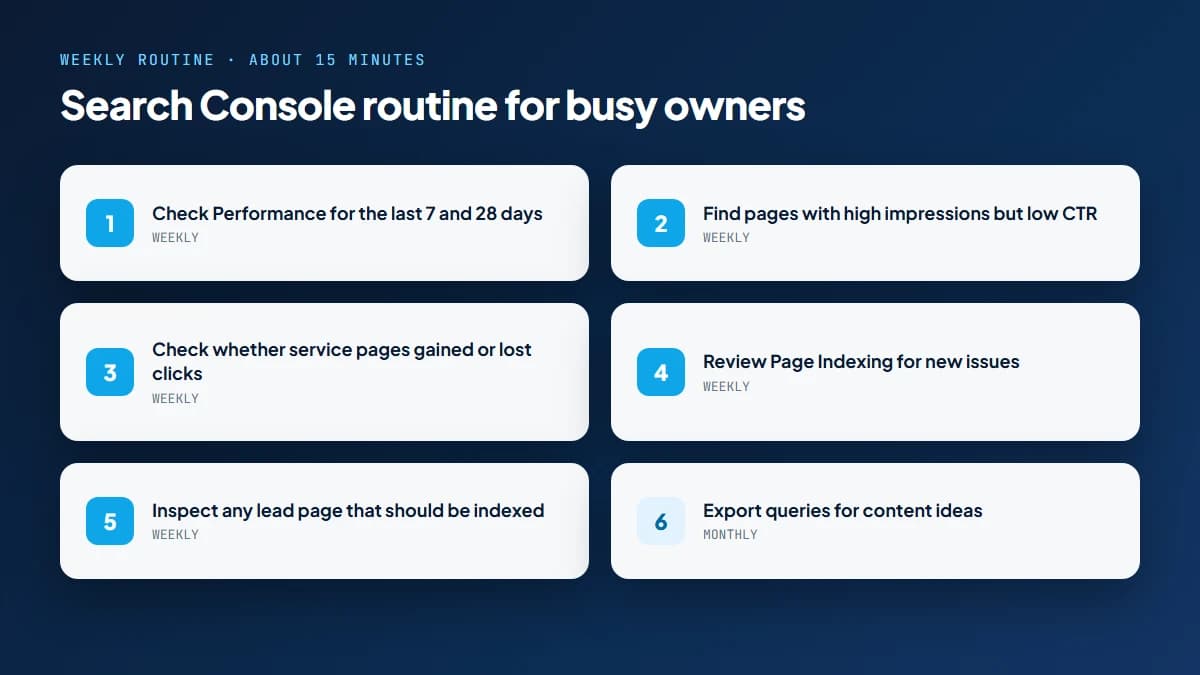
This turns Search Console from a scary SEO dashboard into a decision tool. You are not trying to become a technician. You are trying to catch problems early and ask better questions.
Do not panic after one bad day. Compare date ranges inside Performance. Check whether the drop affects the whole site, one page, one device, one country, or one query group.
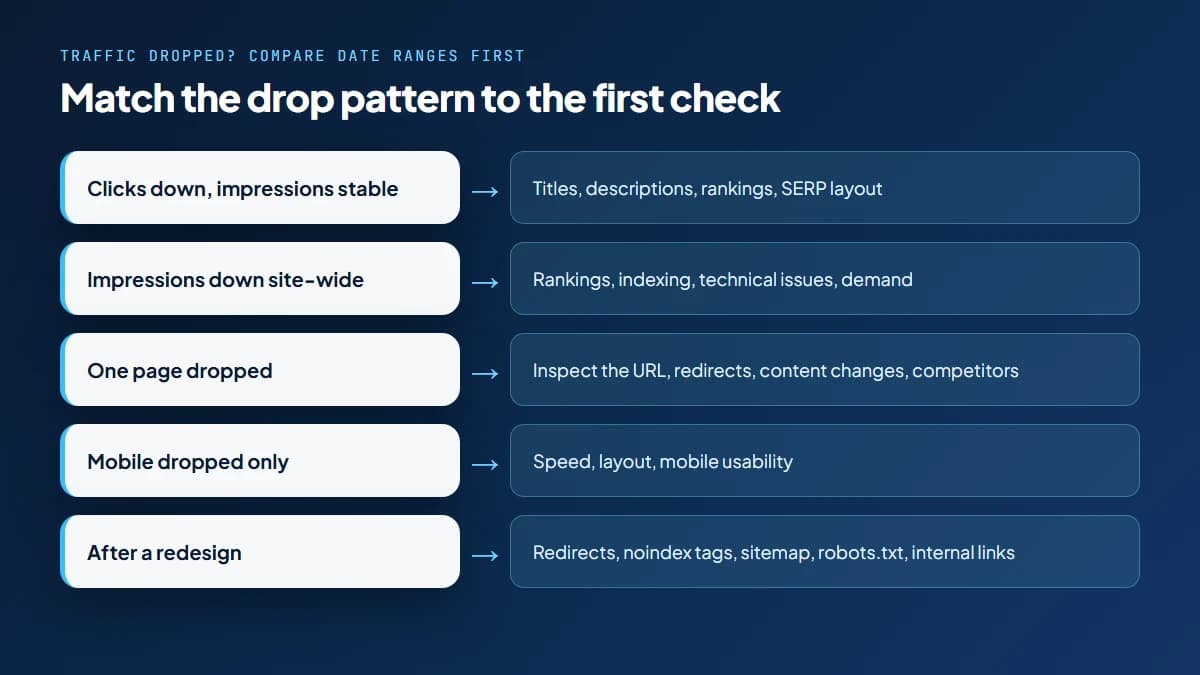
Google recommends combining Search Console with Google Analytics for a fuller picture because the tools measure different things. Search Console shows Search visibility. Analytics shows what people do after they land.
Search Console does not show every AI answer where your site appears, but it still supports Answer Engine Optimization. Clean indexing, strong content, internal links, and technical health help search systems understand your pages.
Google announced new tools for website owners in 2026 to help them navigate AI in Search, including Search Console controls and performance insights. Local SEO Mississauga's Answer Engine Optimization guide also explains why businesses need direct answers, topical authority, and trust signals.
Get help when important pages are not indexed, traffic drops after a migration, Core Web Vitals are poor, reports do not connect to leads, or you keep seeing warnings you do not understand.
Local SEO Mississauga offers SEO audits, technical SEO, content strategy, and local SEO services for businesses that want plain-English fixes. The goal is simple: find what stops your website from getting seen, fix it, and turn search visibility into calls.
Check Page Indexing and inspect the homepage. Your site may be new, blocked, not indexed, poorly linked, or returning a technical error.
Google saw the page but did not choose to index it yet. Improve content quality, uniqueness, internal links, and relevance.
Verify your site, submit your sitemap, and use URL Inspection to request indexing for important pages.
Impressions mean your result appeared. Clicks mean someone selected it. High impressions with low clicks often means weak metadata or poor intent match.
Compare date ranges, then check pages, queries, devices, indexing, redirects, content changes, and Analytics.
No. Google says a sitemap can help discovery, but it does not guarantee indexing or ranking.
Weekly is enough for most small businesses. Check more often after publishing, redesigns, or traffic drops.
Inspect your homepage, core service pages, location pages, lead-generating blogs, and pages with indexing warnings.
Yes. The Performance report shows queries with clicks, impressions, CTR, and average position.
No. Use it with Analytics, technical crawls, keyword research, competitor checks, and conversion tracking.
Google Search Console is not just an SEO tool. It is a business visibility tool. It shows what Google sees, what customers search, which pages earn clicks, and which technical issues need attention.
Start with the basics: verify the site, submit the sitemap, check Performance, inspect important URLs, review indexing, and monitor problems weekly. Once the basics are clean, use the data to improve pages, answer real customer questions, and build stronger local visibility.
Get a free SEO audit and a clear, prioritized plan for your Mississauga business — no long-term contract required.
Get a Free SEO Audit· 8 min read
See what an HTTP 401 error means, how it differs from 403 and how users or developers can fix authentication problems. Check the steps now.
Read article· 11 min read
Improve brand mentions in ChatGPT, Gemini and AI Overviews with stronger entities, citations and answer-ready content. Use the 2026 checklist.
Read article· 14 min read
Build a keyword plan around search intent, competition and business value, then map terms to the right pages. Follow the step-by-step process.
Read article